

Translate Dimension Members
Learn how to configure additional data languages for dimension member display names.
To support localization, you can configure dimension member display names in additional languages. This allows users to see content specific to their locale while maintaining a consistent data structure. For example, the Job Name dimension members will display in French in a visualization if the user has selected French as their preferred language. By leveraging your source data, you can map localized display names directly to dimension members during the data load process.
Source data file options for translation:
- Include additional translation columns in your source data file. For example, if you have English, French, and German job names, the source file would include a column for
JobName_DisplayName,JobName_DisplayName_fr, andJobName_DisplayName_de. For more information, see Add or Remove Records from a Source. - Upload a separate translation data file that contains the translated strings and create a source. For more information, see Create a Source. This file must contain a mapping key, which is used to join the translation data file to the original source's data table during the lookup mapping process.
Configure localized dimension member display names
Follow the steps below to enable additional languages and map your translation data to the appropriate display names.
Note: Parent-child dimension members generated by system rules cannot have display names loaded through source data. You must configure localized display names manually in the Configure tab of the parent-child dimension.
Enable additional languages and dimension settings
Before mapping translation data, you must define the languages your data will support.
- In a project, on the navigation bar, click Model > Settings > Languages.
- Click the plus icon to select additional languages.
-
Select languages from the list and click Add.
Result: Display name properties are created for each additional language, allowing them to be mapped.
-
For leveled dimensions: Click Model > Dimensions and select the dimension you want to translate. Click the Customize tab and select Use mapping display name checkbox. This allows you to map each level's object name and display name using different source columns.
Configure mappings
To connect your translation source data to properties in Visier objects, you must configure the mapping.
-
Do one of the following:
-
In a project, on the navigation bar, click Data > Mappings.
- In a project, on the navigation bar, click Model > Analytic Objects. Select an analytic object and then click Mappings.
-
-
In the left-hand panel, select the object you want to map and click Map.
-
In Properties, expand the property you want to map.
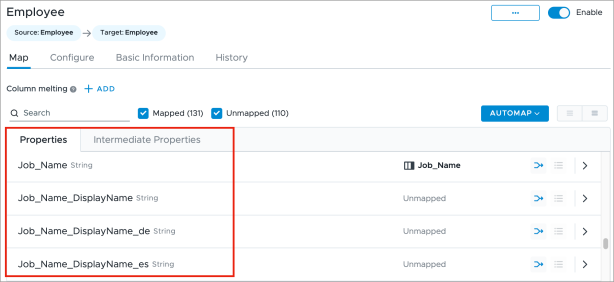
- Depending on how your translation source data is provided, do one of the following:
- If you included additional columns in your source data file, map the source column containing the translated string to the corresponding language attribute. For more information, see Configure a Mapping.
- If you uploaded a separate translation data file, augment the property using a lookup mapping. For more information, see Create a Lookup Mapping.
Considerations
-
Localized display names must be provided for all levels of a dimension. For example, if you provide translations for Level 2, you must also include them for Level 1 and Level 0.
- If an additional language is removed after a target property is mapped with display name translations, the property remains but is marked as invalid. If the target property was never mapped, there is no residual property left behind when the language is removed. For example, if you map
JobName_DisplayName_frto the translated string in your source data and then delete French from the list of additional languages, theJobName_DisplayName_frproperty will appear in mappings as invalid. -
Map each translated dimension property only once. If a shared dimension is mapped in multiple places with conflicting data, the data load process will select a mapping arbitrarily. If the selected value is blank, the system will fall back to the default language.